Once the installation of the extension is finished, in Business Central, go to My Settings by clicking on the gear icon in the top right corner, and switch to the Sales Order Processor role.
To start the Setup Wizard, click on EasyPost > Administration > Setup Wizard action in the top menu. The Commerce 365 for EasyPost setup wizard will start and guide you through the configuration process.

You can always go back to the role center screen and start the wizard again by clicking on the Setup Wizard action button. The same values can also be altered by going to Administration > Setup.
Please enter your Commerce 365 App ID and App Secret. You should have received these details in an email from us after installing Commerce 365 for Sendcloud. Don't have these details? Please contact us at trials@commerce365.io.

Please enter your EasyPost API key. To obtain your API keys, please follow these steps:
- Login to your EasyPost account, click on your account name in the menu on the left, and go to API keys
- Create at least one Test and one Production API key
- Your API keys will be automatically generated.
- Depending on the type of enviroment you are installing copy+past the key into the field in step 2 of the wizard.
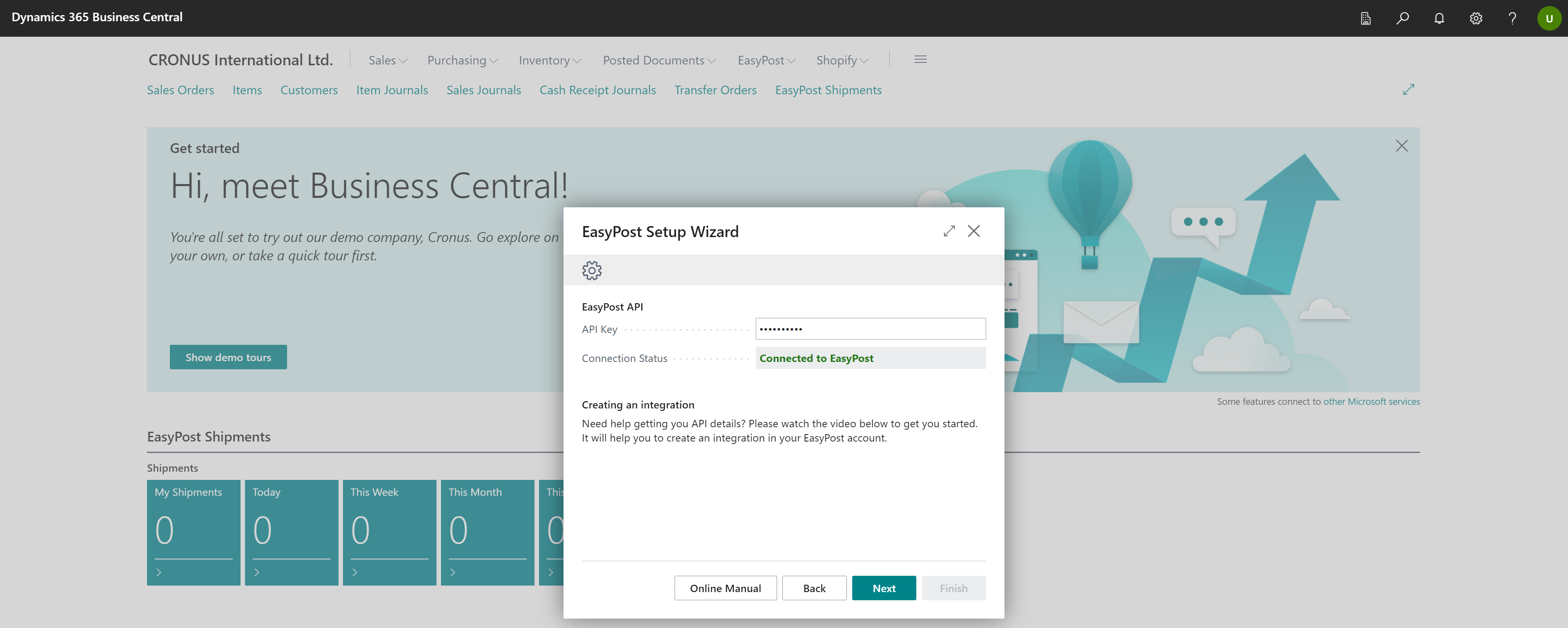
Click Next and then Finish to complete the setup wizard. Business Central is now connected to EasyPost.

Was this article helpful?
That’s Great!
Thank you for your feedback
Sorry! We couldn't be helpful
Thank you for your feedback
Feedback sent
We appreciate your effort and will try to fix the article