To create Sendcloud shipments directly from Business Central sales orders, you have two options. You can extend the posting dialog to trigger shipment creation during posting, or manually create the shipment using the button at the top of the sales order card. The posting dialog extension is configured on the setup card under Shipment Creation.

When posting a sales order, Business Central displays several posting options, depending on your configuration.
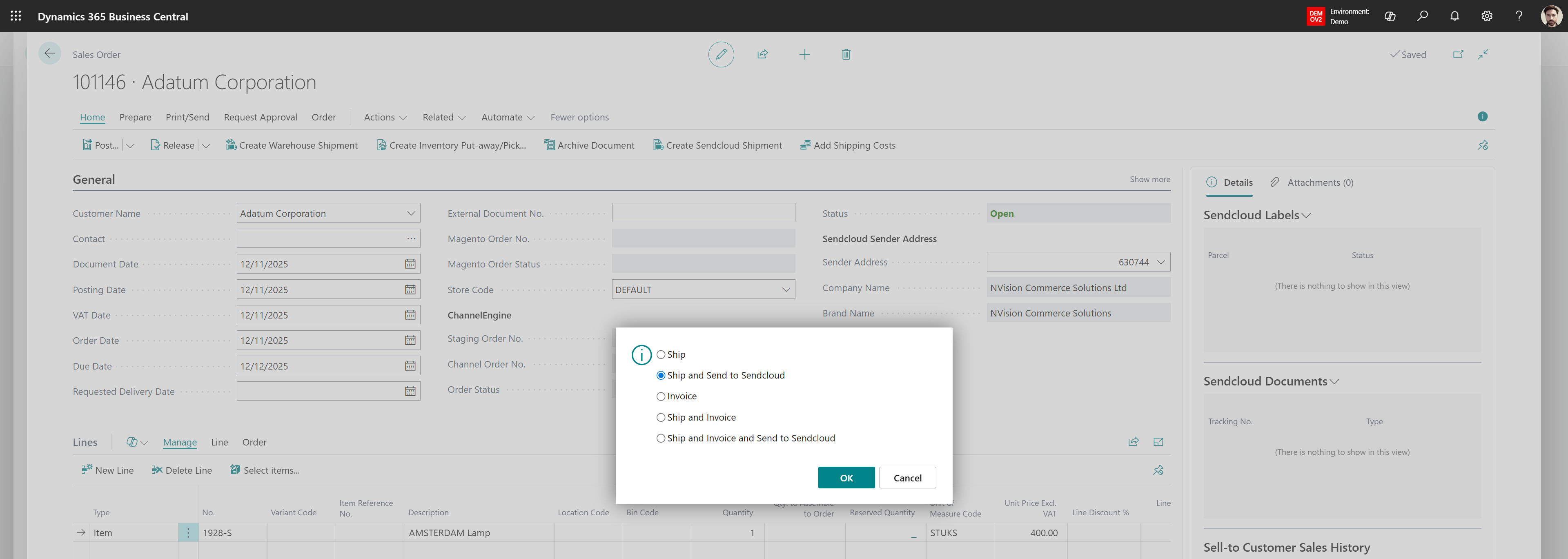
| Action | Description |
| Ship | Will create a posted sales shipment for the relevant order lines of the order. |
| Ship and Send to Sendcloud | Will create a posted sales shipment and a Sendcloud shipment for the relevant lines of the order. |
| Invoice | Will create a posted sales invoice for the relevant lines of the order. |
| Ship and Invoice | Will create a posted sales shipment and posted sales invoice for the relevant lines of the order. |
| Ship and Invoice and Send to Sendcloud | Will create a posted sales shipment, a Sendcloud shipment and posted sales invoice for the relevant lines of the order. |
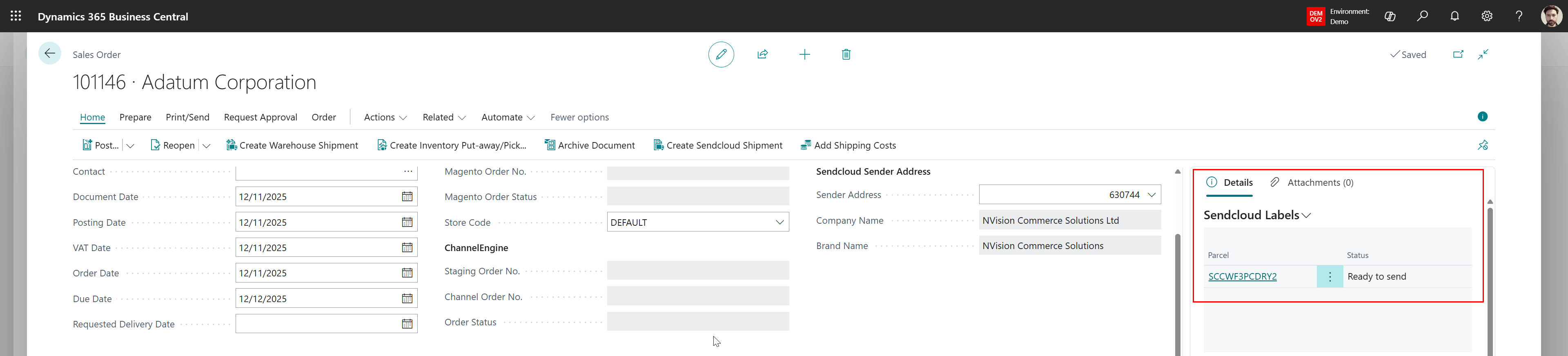
After creating a Sendcloud shipment for a given sales order, the created parcels will be shown in the Labels factbox. This factbox contains the parcel number (or tracking no once posted) and the current status of the shipment at Sendcloud. The same factbox is shown on the Posted Sales Shipment. You can navigate directly to the Sendcloud Shipment Card by clicking on the parcel number.
Was this article helpful?
That’s Great!
Thank you for your feedback
Sorry! We couldn't be helpful
Thank you for your feedback
Feedback sent
We appreciate your effort and will try to fix the article